Showing posts with label Evernote. Show all posts

Sunday, December 13, 2015

DigiLit Sunday: Sketchnoting in Evernote

It's been awhile since I've had something new and exciting to say about Evernote, but today is the day!  This week, while in a meeting, I once again noticed the small pen icon at the top of my note.


I gave it a click to discover it would be possible for me to handwrite notes while working in Evernote.  That's going to be big news for some of my friends who prefer to handwrite their notes.  It was pretty exciting news, but honestly my handwriting is sometimes hard to read; it's often reason I type in the first place.

However I've been playing a bit with sketchnoting.  Though I'm not an artist, I find the way sketchnoting requires me to think visually to be a fun challenge.  I decided to give sketchnoting a try during the meeting.  Creating a sketchnote requires much more synthesizing of information.  It really requires me to listen in a much deeper way.  I'm not sure as teachers we would find a student drawing to seem like they were truly listening, but I promise if you try it yourself you will begin to realize the challenge involved.

Here's a note I created:

The handwritten information or sketchnote then lives within the Evernote note page that has been created.  You can reopen the note to add more information.  

What I liked:
  • ease of use (much easier than using the Skitch app embedded EN)
  • palette had several color possibilities
  • I could change the width of the pen/marker
  • dots on page make it easier to add lines and consider space
  • saves within a note in the same way images do 


What I might improve:
  • the bumpiness of some parts  (That could have been my stylus.)
  • a way to enlarge parts of page for more detailed sketching
  • a way to share just the sketchnote or writing page without sharing the entire note or taking a screenshot (Maybe it's there and I haven't figured it out yet.)
  • I missed the ability to pull up the shield that allows you to place your hand on the iPad while  you work
I'm so excited about the possibility of this new tool within Evernote.  If you love Evernote, you'll want to give it a try.


As part of a continuous collaboration among educators interested in digital learningMargaret Simon hosts a weekly Digital Learning round-up on her blog:  DigiLit Sunday.  Stop by Reflections on the Teche.  


Sunday, January 25, 2015

DigLit Sunday: Keeping Small Group Notes in Evernote

As part of a continuous collaboration among educators interested in digital learningMargaret Simon hosts a weekly Digital Learning round-up on her blog:  DigiLit Sunday.  Stop by Reflections on the Teche (today's link-up) to read, discover, and link.  


Evernote is my go-to app for keeping artifacts that tell the story of learning.  I record conference notes, capture pictures, and save student work using this application.  The ability to create notebooks, build stacks, and tag notes helps to make the tool useful in, not just keeping information but also, sorting, sifting, and planning next steps.

However, I've remained a bit stumped about how to keep small group records.  I've tried a variety of plans, but this year I seem to have stumbled upon a plan that has worked better than previous attempts.  Working with small groups all day long created a need for a workable solution.  This year, I have created a notebook for each small group.


I then made a chart in a note I use as a template each week.

  • I add the focus up at the top for the group.
  • Then record student names in the blanks to the left.
  • I then add individual considerations to stay focused as we work together.
  • Then each day I add notes and observations in the appropriate box. 
At the beginning of each week, I copy the template, tag it appropriately, plan my focus, make notes about individual considerations, and consider books for the week.

During the week, I then record notes of our time together.  Take a running record on paper?  Snap a picture in the space saved for the child.  Want to have an audio of student reading?  Record the audio from a familiar or new book.  Want a picture of a response to reading?  Snap a picture.  Want to take to remember the books sent home without writing all the titles?  Snap a picture.

This note can easily be sent to classroom teachers at the beginning of the week for their planning consideration or at the end of the week so they can see our focus.  Because my notes can be a bit cryptic on the run, I usually send more of a synthesis of our work to classroom teachers.

I'm sure there may be a better way to keep track of small group information but, for now, I seem to have stumbled upon a viable solution.

You Might Like 
On the Blog:  More posts about Evernote.
Evernote Resource:  Capturing Learning Journeys

Wednesday, November 12, 2014

Evernote Presentation for Conferences!

Oh, Evernote.  It just keeps on making me smile.  Who knew conference prep could be so easy?

Recently I heard about Evernote presentation mode.


From Evernote:


Since I use Evernote for just about everything, I wondered how I could use presentation mode....and then it was conference time.  (cue the music)

How to use Evernote presentation mode for conference time?

First I created a structure for my time in conferences.  I thought about what I wanted to share with parents and set up a structure like this:
  • student commentary
  • shifts in books since the beginning of the year
  • reading growth 
  • writing growth
  • assessment information
  • reading calendars 
  • strengths
  • next steps
  • helping at home *
  • class links *
* same across all notes

I then made topic headings and pulled in the pieces I knew would be consistent across conference notes.  When the note outline was created I then duplicated it and created one for each student.  Finally, I added examples of student responses to questions about their growth as a reader using audio, attached pictures of snippets of text and writing samples, created post-its listing strengths and next steps, and then linked to assessment and calendar information.  

After completing the note I was ready for conference conversations.  In the conference I just pulled up the conference note, switched to presentation mode, and began to chat.  It was easy to stay on track in the conference.  Smooth.

Here's how it worked:


Evernote.  Love it!

Tuesday, November 4, 2014

Changing Our View

Every day I'm reminded of how fortunate I am to be teaching and learning with the colleagues in my school.  In my new position supporting readers, I'm continually in and out of classrooms, taking time to talk with teachers, and seeing the work they do with students.  I'm continually humbled.  I'm also continually challenged to keep up and adequately support the work these educators do every day.

Recently I've been reminded of this again.  Imagine my joy when I received these emails from the classroom teachers of a few of the students I support showing me new steps of learning in their classrooms.  I'm used to sharing next steps with parents and teachers via Evernote, but I haven't really ever been on the receiving end of these joyous celebrations until recently.  These emails celebrated where students were as learners and honored the ways they were growing.

This sample of student writing shows how this student is growing her understanding of story.  It also demonstrates shifts in her oral language and confidence.  I was thrilled when her teacher, Deb Frazier, sent this to me!

Click HERE to listen to the conversation. 
This next example is one sent to me of a student we have been supporting to think of his message before getting started with tools to create.  He wasn't just expected to make the change, you can see in the picture the way his teacher has been supporting him before he got started with his work.


This is a picture of one of my students leading a book talk about Danny books she has been reading in her classroom.  Her teacher, Marie Nixon, made my day by sharing it with me.  She's quickly becoming a reading leader in her community.


When Pete the Cat and His Magic Glasses was published, I fell in love with its message.  Sometimes just changing our view makes everything better.  How lucky these students are to be in classrooms where teachers recognize and celebrate these new steps as they grow as literacy learners.


In my new position had a few questions I had started my year asking:

  • How do I support readers in a way that works for each child?  (In other words, children's needs before system, teacher, my own needs.)  
  • How do I advocate for children and celebrate the steps they make as learners with them, their teachers, and their families?  
  • How do I help these readers connect to their reading communities?
  • How do I connect the work we do to their independent reading and daily learning in their classrooms?  
  • How do I support teachers without giving them one more thing to do?

It's easy in teaching to fall into a "what needs fixed" mentality.  Our systems are often set up to make us look as deficits instead of strengths.  We have to work hard to keep our thinking and conversations focused on what children can do.  I'm grateful to these classroom teachers for their persistence in finding the little steps to celebrate and supporting these young learners in their journey.


Tuesday, October 7, 2014

Yep, I Still Love Evernote


It's not uncommon to stop by my blog to find me gushing about Evernote.  Yep, I still love Evernote.  In past years I've used Evernote for keeping conferring notes during workshops, to collect pieces of student learning, and to stay organized.  I've used it to take pictures, record audio, and keep notes.  With the help of tagging, I've used it to sort and organize for planning.  I've used it to show students the progress they've made or remind them of strong steps forward.  Additionally, it has always been perfect for sharing information with parents, colleagues, and support staff.

With a change in position this year, however, I've had to rethink how I use it.  That's what I think is the best thing about Evernote:  it's flexible.  You can use it in a way that works for you.  Here are some ways I'm using it this year:

Using Evernote Charts for Planning:  This year I decided to keep my plans for reading support in Evernote instead of Google Drive.  I didn't want to have to continually switch back and forth between applications during lessons.  Thankfully, after some playing, I managed to use the table icon to create a template for planning.  The top shows the general structure for our lessons.  Inside each box, I plan the new book, introduction, and teaching point.  As I plan I also include notes about word work, writing, and any familiar reading reminders I might need.  After planning, I add the names of students to the far left and then keep notes each day.  Reminders and notes for particular students are kept at the bottom.  Each week I duplicate the template and begin to plan.  

Plan Template


Using Checklists for Observations:  I created a general checklist of concepts of print and high frequency words to note observations during daily reading and writing using tables and checkboxes.  Though I don't keep this information with every student I support, I find it helpful in situations where students need more systematic instruction.  I can easily add notes and observations where helpful.  

Checklists for Literacy Observations 

Capturing Student Assessment Notes:  In past years, I created a new note each time I conferred with a student.  This year, because I am strictly focused on literacy, I am keeping one note for each student for assessment.  Student daily notes during groups are kept in the plan template.  There is a note for collecting student assessment information.  The image to each new assessment piece is placed on top so it is easy to scroll down to see older assessments and note progress over time.  Audio recordings, links to Google Forms, and other growth information are kept in one note.  

This is a snapshot of the top of an assessment note.  


Tracking Parent Communication:  Additionally I am keeping a note for parent communication for each child.  Each note is housed in a notebook organized by classrooms.  Each time I contact parents I'm keeping information here.  When I sent information via email it can easily be forwarded to Evernote.

Using Notebooks to Organize:  Using notebooks in Evernote can help to organize information.  In the past, I've had one notebook for each child.  This didn't seem an efficient way to work when I would be seeing mostly small groups.  For reading support, I've organized notebooks by classroom teacher.  This not only makes it easy to organize and locate information, but also helps when it is time to talk with teachers about the progress of students from their classroom.

I'm still playing to find a system that works best.  The variety of features available in Evernote help me to adapt information so it can be easily used in daily instruction.  


Wednesday, August 13, 2014

Advancing Learning Journeys: Digital Student Portfolios Blog Tour

"One realization regarding assessment is that formative and summative assessments are often not separate entities."                                                                  -  Matt Renwick, Digital Student Portfolios, p. 82 

A New Start 
It's that time of year.  On Facebook, my educator friends are sharing pictures of their classrooms set up for the upcoming school year.  There are conversations about spaces, classroom libraries, and goals for a new year.  On Twitter, the conversation has been about first read aloud selections, workshop routines for the beginning of the year, and changes in math practice.  Our minds are spinning with all there is to do, and all we hope to do differently, as we take our first steps in our new learning communities.

That makes this the perfect time to share Matt Renwick's new book, Digital Student Portfolios:  A Whole School Approach to Connected Learning and Continuous Assessment.  If I remember correctly, I was first introduced to Matt Renwick by Susan Dee several years ago in a Google chat.  At the time, I had started collaborating with others in my PLN to figure out Evernote.  Since that time, our conversations have continued and grown so I was honored to be asked to join the blog tour for Matt's new book.

Capturing Advancing Learning Journeys (p. 16 Jossey-Bass, 2011 reference)
As we think about the beginning of the year and start to set routines for ourselves and our learning community, considering use of a digital tool for collecting learning artifacts has many advantages.  In this book Matt reminds us, "[The tool selected to capture learning] is secondary to the 'big idea' itself compiling a dynamic collection of information from many sources, in many forms and with many purposes, all aimed at presenting the most complete story possible of a student's learning experience."

Here's an example of a checklist I created for writer's workshop
observations in the beginning of the year.  I copied the checklist
put it in each child's folder for conferring.
In an education world filled with data, graphs, and charts, it is easy to lose sight of the story of learning - of the journey.  Matt shares classroom vignettes that help to illustrate the way this school community worked together to find better ways to capture the journeys of young learners to document growth, plan next steps and celebrate progress.  (Throughout the book there are links to Evernote notes, screencasts, and examples of the work done in this learning community.)

Here's an example of a student's shift in spacing
after two lessons.  When we took the picture we took
a picture of her new piece with spacing and placed
the previous piece without spacing above to show
the change.  

Digital portfolios allow "the teacher to both respond to the student in the present moment, as well as look back later on artifacts of learning to prepare for instruction in the future. (p. 83)"  In his book, Matt compares performance and progress portfolios.

  • Performance:  "Digital student portfolios have the capacity to showcase [my emphasis] our students as people with ideas, creativity, and passion." p. 32  These portfolios share more personal best or mastery work and lend themselves to being more summative in nature.  
  • Progress:  "Progress portfolios are more fine-grained; the contents collected in these portfolios show growth over time; the ups and downs, the struggles and breakthroughs, that are always part of the learning process."  These portfolios share the steps along the way and may be more formative in nature.

Student Ownership
Matt's equation for engagement would look like this:
access + purpose + audience = engagement.

Connections help students to work authentically and Matt states, "I have found that the most powerful motivator for bringing out the best in student work is a broader audience. (p. 42)"  The examples shared help illustrate this point.

Matt continually stays focused on pedagogy over technology.  One of the pieces I appreciated was the emphasis on student ownership across the book.  For me, Evernote has opened doors to documenting the steps in student learning with purpose, ease, and efficiency.  It has allowed me to keep notes, capture images, and record audio to collect touch points across the year of steps students have made as learners.  It has made it easier to collaborate and share information.  However, I'm continually asking myself if students own this process.

Matt reminds us, "Students should also be invested in the process of collecting, analyzing and reflecting upon the products they produce (p. 15)."  The examples he shares of student work, Evernote notes, and other learning artifacts helped me to envision ways to begin to shift ownership to students.

A New Year
Now that my room is arranged, my first read aloud chosen, and my new website is ready to roll, I am ready to create folders for the students I will work with this year in Evernote.  Matt's book has me ready to spend some time considering new steps for the new year.

Please comment for your chance to win a copy of Digital Student Portfolios.  


Monday, September 2, 2013

Using Evernote for Forms and Templates

You know I could go on and on about my love for Evernote.  Evernote has made keeping records and staying organized so much easier for me.  It's the best thing that has happened to my personal organization since I forced myself to get rid of my teacher's desk many many years ago. (I've been collecting helpful Evernote articles here.  Evernote:  Capturing Student Learning Journeys)

Thankfully, there are many colleagues working with Evernote now so I'm constantly rethinking its use and learning new tricks.  It seems the eternal question for Evernote comes back to using forms.  How can you make a form in Evernote?  Well, as far as I've been able to figure out in conversations with other Evernote users, you just can't.  Typically I prefer a blank piece of paper to a form anyway as I can shape the note in the way that works for my message, but there are times when a form might just be the perfect thing.  For those times, here are a few possibilities.

Using Forms
Here are a few ways I've learned to create forms and organize with Evernote:

Checklists:  If you can make a check list work, Evernote will allow you to create one inside a note.  This is the only way I have discovered to make a form directly in Evernote.  (Well, you can also make a note with set questions and use it as a template.)  I just create the checklist template and then copy it into individual notes for students.


Google Forms:  I have found Google Forms to be my favorite "go to" form creator.  I can easily create forms for parents, for conferring with students, and for recording data in a user friendly format.  Google Forms will take my information and place it in a spreadsheet where I can move it around and work with it.  Here a quick how-to by Susan Dee.

I typically create a form and then insert the form link into Evernote.  Then as I move around the classroom I can easily click into the form to add information.  After the form is complete I go to the created spreadsheet, highlight important parts of the information, sort it if needed, and then take a screenshot of the completed spreadsheet.  I then place the screenshot in Evernote with appropriate tags.  Often I add it into the note with the original form link.  I'm then able to click on the note during the day directly in Evernote without leaving to go to my Google drive.

Ghostwriter Notes:  Ghostwriter Notes is another app I use for using forms with Evernote.  Ghostwriter allows you to create different types of notebooks for recording information.  With Ghostwriter you can choose your own paper for you notes or use custom paper you create.  When using Ghostwrite I create a note in Word and then take a picture of it.  I then insert this picture as custom paper.  After I have the paper created I can type or write on the notes.  As you turn the page a new page is created and dated.  When finished with the note you can send it to Evernote using your Evernote email account address which is located in the setting of your account.  Ghostwriter pages can be emailed to parents and other collaborators in one easy click.

Noteshelf:  Noteshelf works almost exactly like Ghostwriter, but it allows you to use tags on each page.  This would make Noteshelf a better choice if you wanted to just keep your forms in a notebook without sending them to Evernote.  I find Noteshelf to work with a little more ease than Ghostwriter as Ghostwriter has its glitchy days (though I don't find them enough to keep me from using it).  I also prefer the pen selection in Noteshelf to that of Ghostwriter.  While Noteshelf allows you to create notebooks, make custom paper, and use tags, emailing from Noteshelf to your Evernote account requires a few more clicks.


KustomNote:  Katherine Sokolowski wrote at Read, Write, Reflect about KustomNote in Stumbling Through Evernote.  I had a hard time using KustomNote, but it does allow you to create forms and may work better for others.


If you have solutions to the eternal Evernote form question, I'd love to hear your thoughts.


Tuesday, July 30, 2013

ILE 2013: Capturing Learning Journeys with Evernote

July has been quite a month of connected learning:  #nErDcampBC, #cyberPD, #choicewriting, and this week #ILEOhio.

Today Deb Frazier and I will be sharing ways we use Evernote in our classrooms in a morning session at Ohio's Innovative Learning Environments Conference.

Links for today's session:

Today's Survey:  What About Evernote?

Our Session Slides:


Capturing Learning Journeys:  A collection of resources to help with Evernote.


Sunday, May 19, 2013

Assessment Transformations: Going Digital

How do you document the learning happening in your classroom each day?  How do you capture the stories of the readers, writers, scientists, mathematicians, you sit beside as you confer in your workshops?  Finding workable systems for capturing, reflecting, and utilizing information to plan instruction is essential in classrooms with a variety of types of learners.  As Donalyn Miller recently reminded us in her Columbus visit to the Literacy Connection, "The best record keeping systems we can put in place are those we can maintain."  Can I get a big AMEN?

Assessment in Perspective:  Using Displays 
I just finished reading Assessment in Perspective:  Focusing on the Reader Behind the Numbers (stop by the final Stenhouse blog tour site:  Reflect and Refine on Wednesday, May 22nd for a conversation with the authors, Tammy Mulligan and Clare Landrigan).  The book provided a smart discussion of types of assessments, purpose for assessment, and practical ways to capture the stories of readers within the busy days of learning in our classrooms.  The authors shared ways to balance summative assessments required by districts, states, and federal mandates, with the formative assessments we value in our daily work with children.

I found the book to be very applicable to classroom practice, but I must admit when I first saw the title for chapter 4, Triangulating Assessment, I felt my heart race and tension begin to rise within me.  However, when I went to read this chapter I found it not to be about looking at three types of formal assessments and averaging the numbers to make an instructional decision.  Instead, the authors talked about formulating our questions about readers, determining the ways to find out more (making assessment decisions), and then gathering a variety of information to begin to shape the stories of learners.  In this conversation they shared ways to display the information in order to think more deeply about it.

For the authors, triangulating assessment is about "analyzing, questioning, and assessing."  It's about asking big questions and finding what's next for learners.  In talking about using displays, Tammy and Clare shared bar graphs, stem-and-leaf graphs, data walls, line graphs, conferring notes, "messy sheets," picture graphs and other ways we can display information to begin to make instructional decisions.  I loved the way they showed examples that easily work within our day to day classroom practices and the conversations we have about the learners in our classrooms with our instructional teams.  Putting a name to many of the assessment techniques we use helped me to think about them more deeply.

Capturing the Stories of Learners 
This conversation also caused me to pause to consider the way collecting assessment information in my classroom as transformed since I have moved from a notebook to my iPad.  It's been a little more than a year since I packed my paper notebook away and went digital.  The transformation has been freeing and helped me to be so much more effective.  Here are a few "must haves" for finding the stories of learners in my classroom:

Evernote!:  Evernote has set me free.  It is the number one application I want to use for assessment as it allows me to flexibly gather information about learners.  I can take pictures of student work, record conversations, write notes, link to student digital writing, and tag it all in ways to easily group and locate it for reflection and planning.  It has really helped organize all the little pieces of information I collect to tell the stories of the children in my classroom.  It's easy to get started and use.  Here's a page I created to collect resources for Evernote.

Google Forms:  Evernote is perfect for collecting individual information.  Google forms is perfect for collecting group information.  With Google Forms I can create forms to collect, sort, and reflect on information collected in more formal assessments (in our district the Fountas and Pinnell Reading Assessments, Developmental Spelling Assessments, and Developmental Math Assessments are among some of the formal assessments I like to be able to work flexibly with information collected) and in informal conversations across our day (by determining key understandings  students need to have about a particular topic of study and turning them into a form to use as I work alongside students).  Google Forms allows me to create checklists, multiple choice response, short text information, paragraph information and much more.  I can then view as a form to quickly record or as a spreadsheet to use the information to plan whole class, small group, and individual instruction.  Linking the form to Evernote allows me to quickly access within Evernote and snapping a screenshot of completed spreadsheets allows me to add these documents within Evernote for greater organization.


Ghostwriter:  Ghostwriter, part of the Evernote trunk, is one of the newer applications I've added to my list (thanks, Marie!).  I like Ghostwriter because it allows me to collect information about individuals (perfect for intervention plans), small groups, or the entire class.  I can create a form or table to collect information, snap a picture of it, and make it the "paper" for a notebook.  Then I am able to type or write directly on the document.  Every day I can turn the page to get a new piece of paper already dated and can easily send this information to Evernote, parents, or team members.  Ghostwriter has its glitches, but they are well worth it.  I'm sure it will continue to improve.

These are a few of my "must haves" for going digital in capturing the stories of learners within my classroom.  What are your favorites?  I'd love to hear more.


Saturday, February 23, 2013

Dublin Literacy Conference

Dublin Literacy Conference
Today is the Dublin Literacy.  It is truly my favorite conference as it is reasonably priced, full of great speakers, and the perfect place to connect with so many smart educators.  The conversations in the halls are as thought provoking as the speakers who share with us.  This year I am presenting in two sessions. You'll find the resources here:

Supporting Primary Nonfiction Literacy Learners

The new Common Core has created much conversation about nonfiction. Nonfiction is a big part of our reading lives. The structures of nonfiction can by various and challenging for young readers. How do we help young literacy learners navigate nonfiction? In this session, Mandy and I will take a look at the Common Core and share ways to weave nonfiction into our classroom communities.

Session A7 (10:30)  Room B172  Mandy Robek and I


Looking for nonfiction?
Visit #nf10for10 jog
26 bloggers share top 10 nonfiction picks


Using Evernote to Capture Literacy Learning

In education today it is more important than ever to document student learning.  Formative assessment, observation notes, and work samples which illustrate a student's learning journey are essential in planning, monitoring growth, collaborating with support staff, and keeping parents informed.  "Kidwatching," a term coined by Ken & Yetta Goodman, can be captured using Web 2.0 tools.  Evernote allows audio recording, capturing snapshots, written notes when conferring, tagging, sorting, and much more.  

Session  B16  (11:30)   Room B156   Deb Frazier, Karen Terlecky and I


Looking for resources?
Get started:  Capturing Student Learning Journeys


Sunday, September 23, 2012

Six Ways to Use Evernote to Capture Learning

Last week I participated in a Google hangout with several colleagues from Twitter and learned so much.  Our discussion was focused on the possibility of embedding a form in Evernote.  Many of us are using Evernote in our classrooms, but the challenge remaining has been putting forms into Evernote for use.  Evernote has basic word processing abilities, but doesn't seem to have to capability to create forms, tables and charts.  On Twitter Kristen Bispels had shared the way she created a Google form and placed it within Evernote.  This conversation led to many questions and a time for a hangout was planned.

As Kristin (@KrisBisBooks), Susan Dee (@literacydocent), Matt Renwick (@HowePrincipal), Katherine Sokolowski (@KatSok), Karen Terlecky (@karenterlecky),  and I talked about using Evernote I couldn't help but think about all of the ways I think Evernote helps me to be more efficient in my classroom.  For me, it is helpful that it has flexibility in the way it is used.  Being able to a capture a variety of information about student learning using tags and notebooks makes it an even better tool for the classroom.

So while I'm gushing with internet love for Evernote I thought I'd share some of the ways I use Evernote:


Conferring Notes  
For my students I have created a class stack.  Every time I sit down with a student I create a new note during the conference.  During the conference I record:

  • What the student was working on that day.
  • What I noticed about the work looking for new shifts in understanding.
  • Important information about our conversation.
  • The teaching point.  I record this at the top of the note so I can easily view it the next time I confer with the student.


Here I took a picture of writing
before and after focus lessons on
spacing.
Snapshots of Learning
Being able to snap a picture of student work is sometimes worth a thousand words.  Here are a few ways I use pictures to capture thinking during our day:

  • class charts
  • student writing during writer's workshop
  • models created with manipulatives in math
  • quick checks done during our learning (often on a post-it) that illustrate new understandings or confusions
  • examples of student work in goal areas


Here's an example from a student's
work in Kidblog.org that illustrates
revisions made to a piece.
Embedding Screenshots
Using screenshot commands on my computer I am able to capture pictures of student examples of Web 2.0 work, class data charts, webpages, and other pieces I may want to remember or view easily.  Evernote has a web clipper that works within its application as well.  


Here are notes during a poetry
study in which I used audio to
help a student hear where line
breaks might be added.
Audio  
Having the ability to record students talking in a primary classroom is a powerful tool.  Oral language development is a key piece of literacy learning.  Here are some ways I use audio:
  • To record conferring conversations
  • To have students read or retell their stories in writer's workshop.  (This is especially useful for writers drawing pictures only, when writers tell more in their conversation than the words in their story, in helping young writers listen to hear if their stories make sense, etc.)
  • To record reading fluency.
  • To record retellings.
  • To have students explain their thinking of work done in math, science, and other content areas.
  • To record student thinking to share with peers and/or parents.
  • To have students restate their understanding of learning goals set and share plans of action.

Skitch
One of the great things about Evernote is how it plays nicely with so many other applications.  Skitch can be used in a variety of ways in the classroom.  Students can write on a whiteboard, a photograph, a piece of writing, and many other images to show their thinking.  Often I will take a picture of student work and mark the significant part of my observation to help.  I wish Skitch had audio ability so students could record conversations as they think, work, and share.  If anyone knows of an application that works with Evernote and allows simultaneous creating and audio recording, please let me know.  


Forms
Having the ability to now create forms and embed then in Evernote is going to open a new world of possibility.  After seeing the Google reading form created by Kristin Bisel (Kristin was inspired by this post at Doing the Daily 5) and watching this YouTube video about how Susan Dee is embedding Google forms into Evernote, I see a plethora of new possibilities.  I thought I'd give it a try and created a Google form for information from our fall Developmental Spelling Assessment as it was pretty concrete.  Now I'm working on a new form for collecting retelling information during conferences in reader's workshop.

Other Uses?
I know I'm only scratching the surface of Evernote.  I'm beginning to play with applications in the trunk and need to learn how to utilize sharing features more effectively.  How are you using Evernote?  I hope you'll take a second to comment to let me know.


Friday, July 20, 2012

Using Skitch in Your Classroom

As you know, I've been slowly moving toward a paperless teaching world.  The recent purchase of an iPad, as well as the constant availability of an Elmo and projector, have rapidly changed the way we do business in our classroom.  I've been learning how to use a variety of applications for planning, teaching, collecting anecdotal notes, and capturing student learning.

One application I have found quite useful is now part of the Evernote family.  (For more on how I use Evernote see my Choice Literacy Article:  Capturing Student Learning with Evernote.)  If you haven't downloaded Skitch for your iPad, you should.  Skitch is available for most devices.  I have it on my Android phone, iPad and Mac.  Interestingly, it does not yet seem to be available for the iPhone.  Skitch allows you to take a photograph or screenshot and write directly on it to make your point quickly.  You can also use it more like a whiteboard as a drawing tool.

Learning to Use Skitch
Anytime I download an app - I do just what my students do - I start to play with it.  How could I use this application in my daily life?  Here's what I tried:

After taking a screenshot of one of our flowerbeds, I labeled the perennials planted for future reference.

After planing our garden I labeled the types of plants and their location.  This ended up being helpful since the rabbits decided to eat the eggplant and banana pepper plants.  It was easy to remember what to replant.

This is an idea I had for using Skitch with students in informational writing.  Students would choose a topic and tell one thing they had learned.  Then dig deeper into the information until they were layers beyond where they started.

In the Classroom
Then I started using it at school.  I have found it can be used for a variety of learning experiences.  It enhances discussions with students by helping to make learning more visible.  Here are a few ways I find Skitch to be useful:

Discuss student work:  Here is a picture taken during math workshop.  This student had discovered a way to count objects more efficiently by grouping them.  After taking a photograph and pulling it into Skitch, I was able to circle the sets as we counted together.  (Taking photos during math workshop has helped us to save time during the share at the end of our math workshop.  No longer do students need to drag tools to our circle to show friends their thinking.)


As a white board:  Here Skitch was used to rainbow write a word during a word study lesson.
To show places on a map:  Skitch has a world map that you can crop to show regions.  During Poetry Tag, a global poetry event started by Deb Frazier's class in April, a class from Guatemala left a poem.  We were able to locate Guatemala on the map during our discussion to see where it was located in relation to where we were.  Quick and easy.
To record student thinking:  In an accidental misplacement of myself during teaching, I found myself at my iPad when a discussion about what we had learned so far about clocks began.  I decided to use Skitch to record the conversation written in green.  Then in pink we discussed the challenges we still faced learning to tell time.  The change from a chart really captured student attention.  I could have easily printed this for reference.  In this case, I then walked around the room as students worked and recorded confusions I was noting.  Students did not see this part of the document.


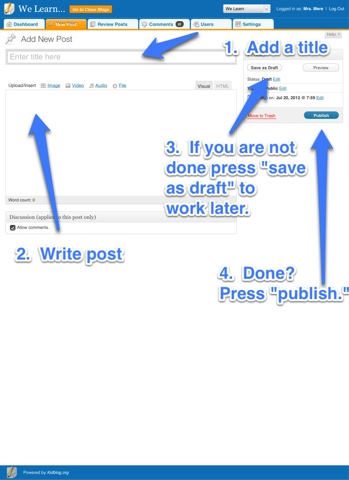
To demonstrate use of a webpage:  Skitch allows you to capture a screenshot and write directly on it.  Here is an example of capturing a Kidblog page to demonstrate creating a post for our class blog.  The labels really help students to see the important parts of the print on the page.  I'm thinking this would be useful in teaching students to understand the set-up of web pages when looking for information and researching topics using the internet.


All of these examples are ways I'm using Skitch to have conversations about learning with students.  Students could do many of these things in their learning to demonstrate understanding if iPads or Macs are available for use.  I'm hoping you'll share your ideas for Skitch below.  

Here are a few links you might find helpful: